Technical Support for ASEBA® Software Products
How to Export My ASEBA-PC 2026 Database
1 min read
After logging into ASEBA-PC 2026:
1. Select the DIRECTORIES tab (if it is not already selected by default) on the left side of the screen. All current directories will be listed in the left frame.
2. Select/highlight the directory, subdirectory, or Assessed Person from which you want to download/export data.
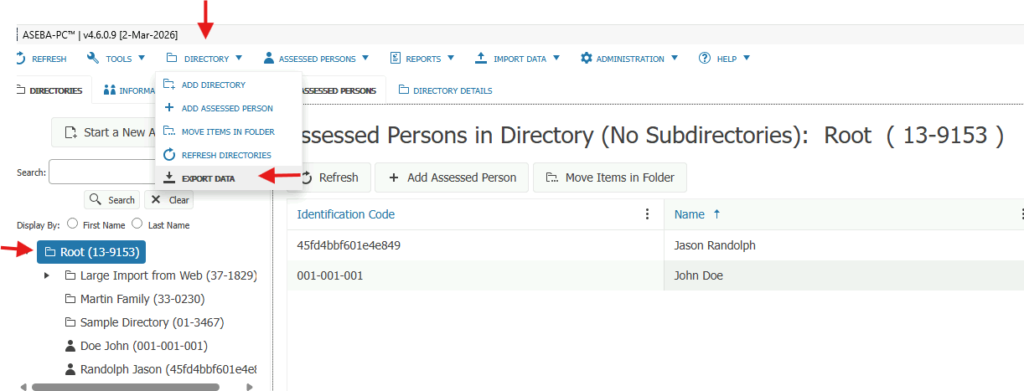
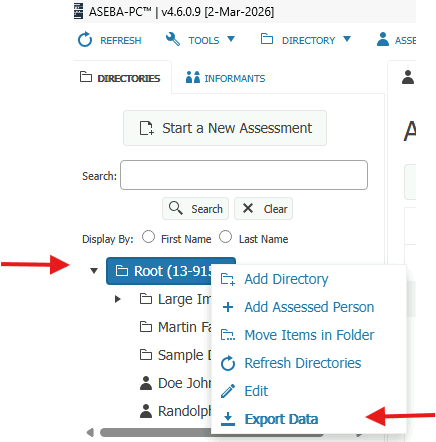
3. Navigation: DIRECTORY (from the tab on top) > EXPORT DATA or, alternatively, right click the directory with your mouse and select Export Data.
4. Select the export file type:
For Excel or SPSS downloads, select either Raw Data, Scored Data, Combined Raw and Scored Data or ASEBA P&O App Data Transfer. For the entire ASEBA database, or an individual Assessed Person, choose Data Transfer. For just a status report on forms, click Form Status Report. Click Next.
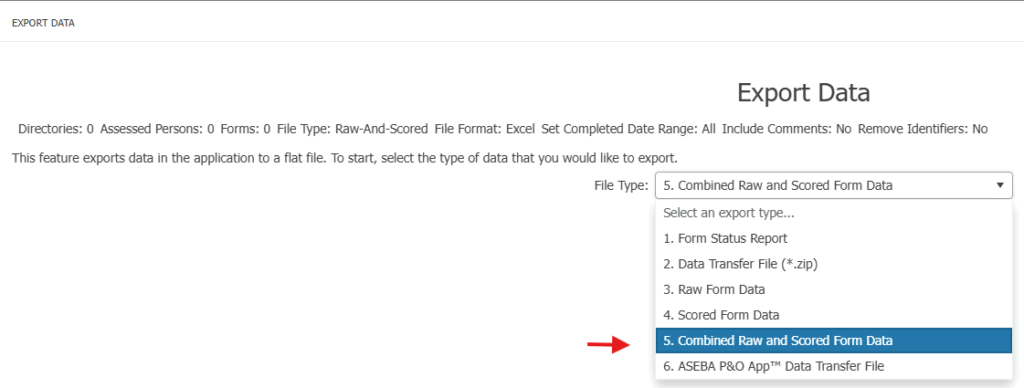
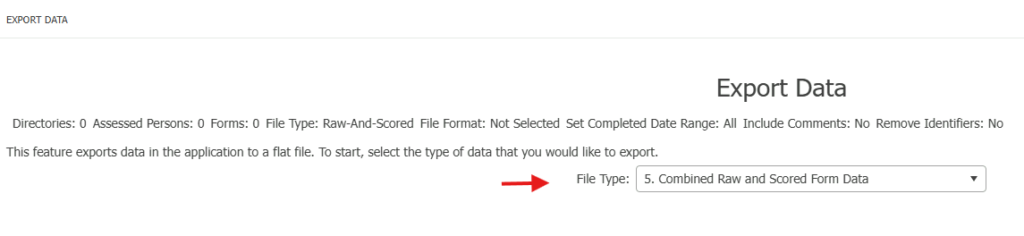
5. For the example below, Combined Raw and Scored Data was chosen.
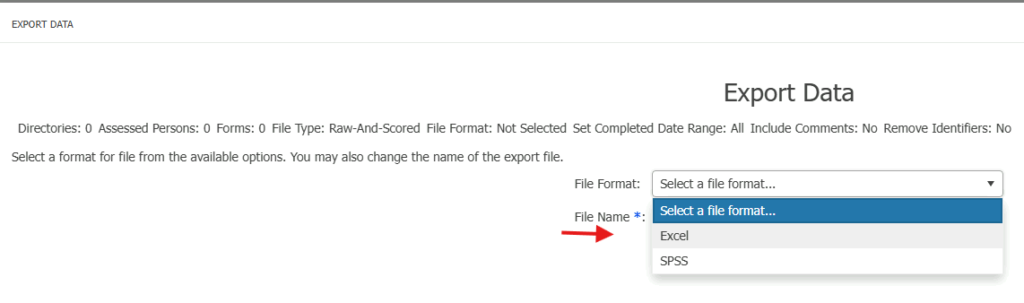
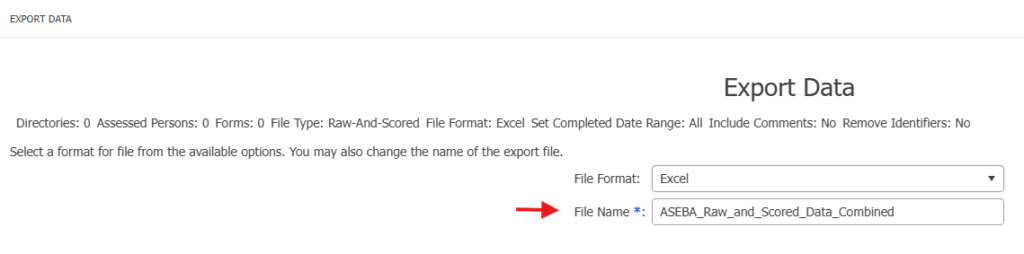
- Select a file format: Excel or SPSS. Click Next. Excel was chosen for this example.
Type in a new file name or use the default name.
- Select a date range if desired. Click Yes or No. If Yes, the window below
will open to choose the date range. No, was chosen for this example.
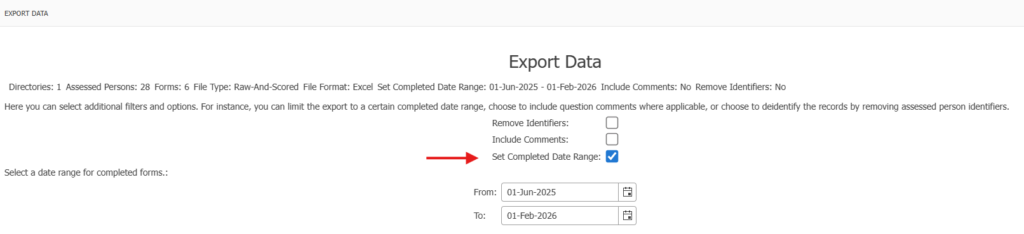
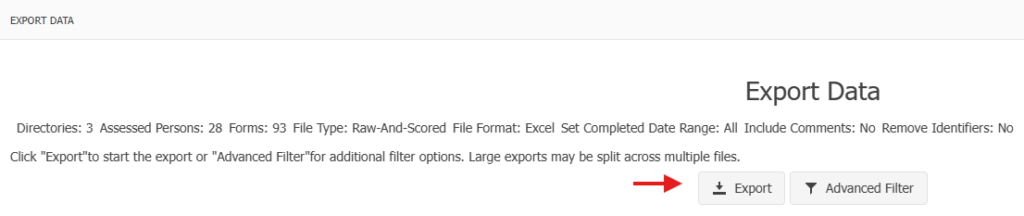
• If desired, click on Advanced Filter tab to further filter your data. Click Export.

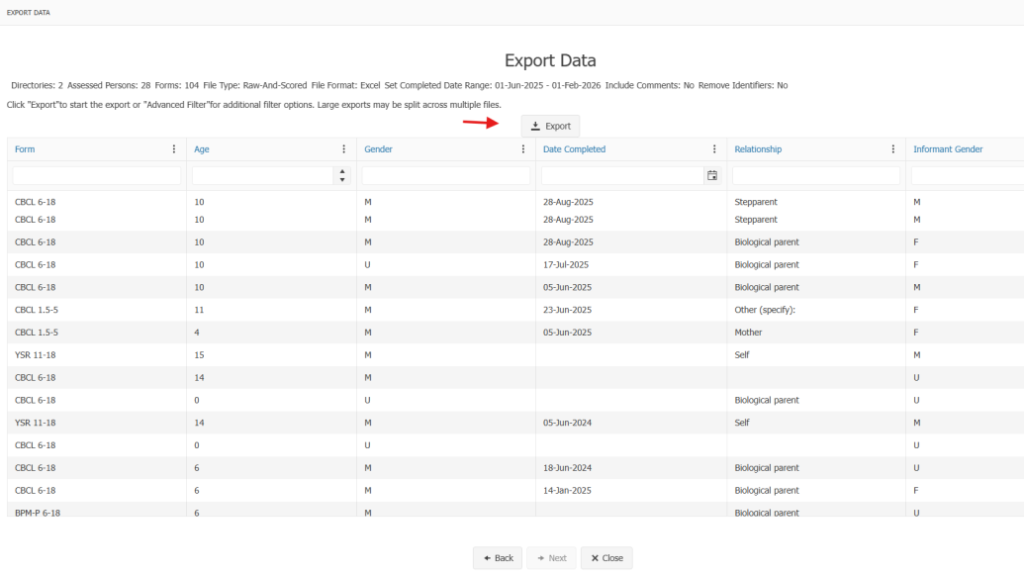
- Click on Export. The file will download into your Downloads folder and double
click on the file to open.