Technical Support for ASEBA® Software Products
How to Install ASEBA-PC 2026, Add Modules and How to Reset your Password.
2 min read
There are two ways to receive the ASEBA-PC 2026 installer: CD or by download link through the University of Vermont file transfer.
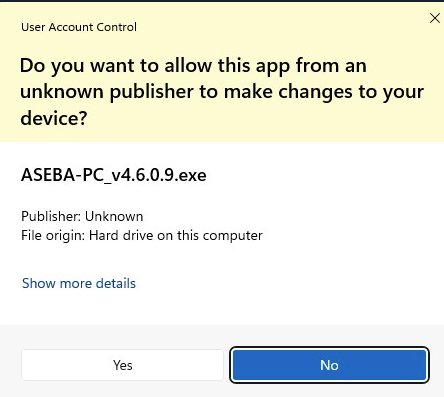
Please double click on the the executable to start the installation. Please click Yes to the prompt, “Do you want to allow this app from an unknown publisher to make changes to your device?”
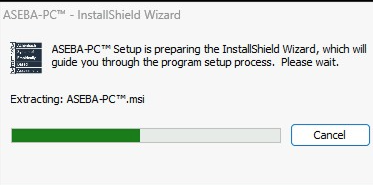
ASEBA-PC will start to install.
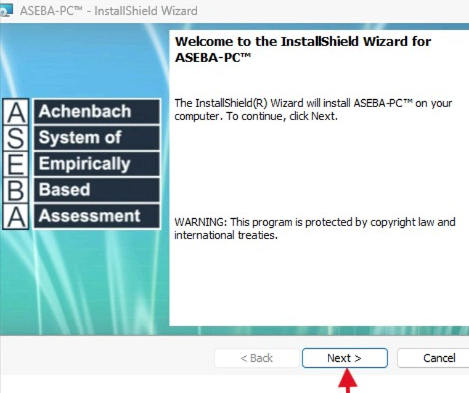
The InstallShield Wizard will begin. Click Next.
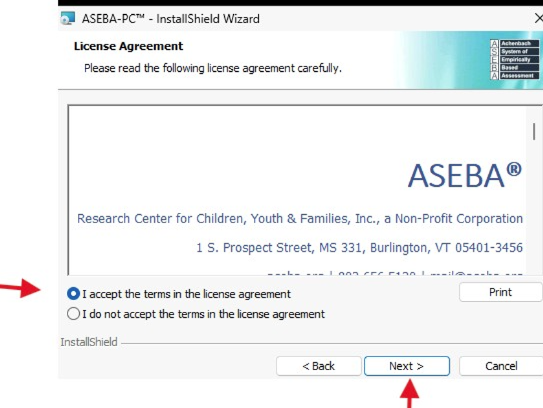
At License Agreement, click I accept and click Next.
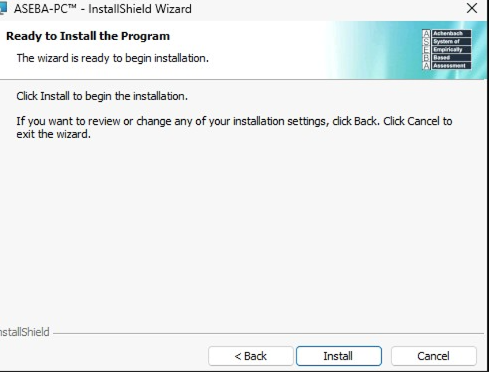
Click Install.
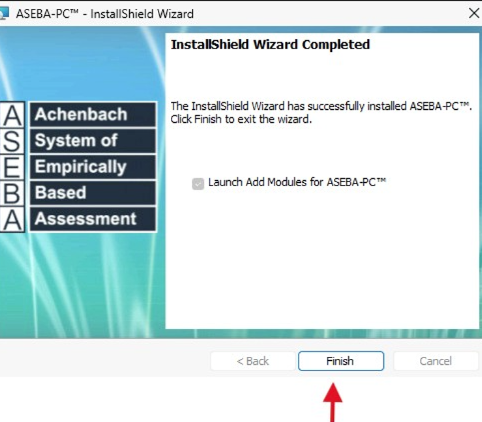
Once the program is finished installing, click Finish.
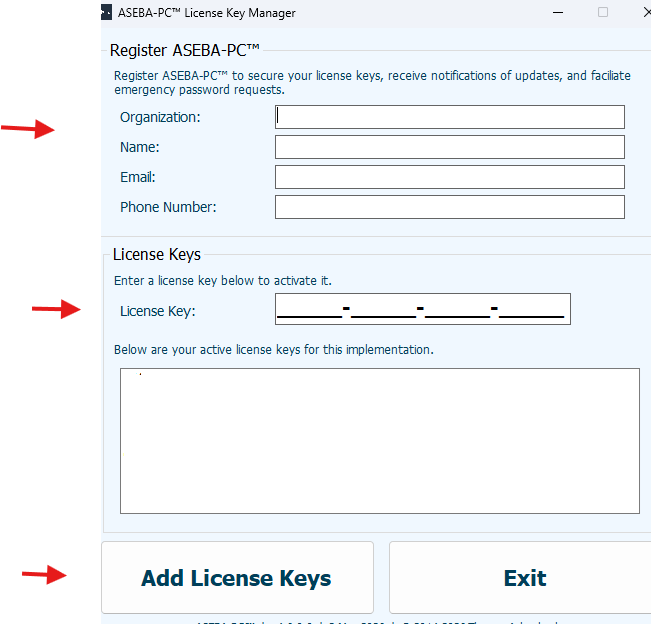
ASEBA-PC License Key Manager window will open. Fill in your information, the license keys and click on Add License Keys. The age module will show in the window once added.
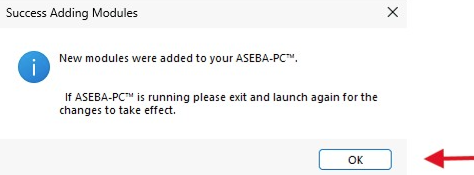
If the license keys are successfully added to the program, the Success Adding Modules Window will open. Click OK.
Double click on the ASEBA-PC Program Icon on the desktop to open the program.

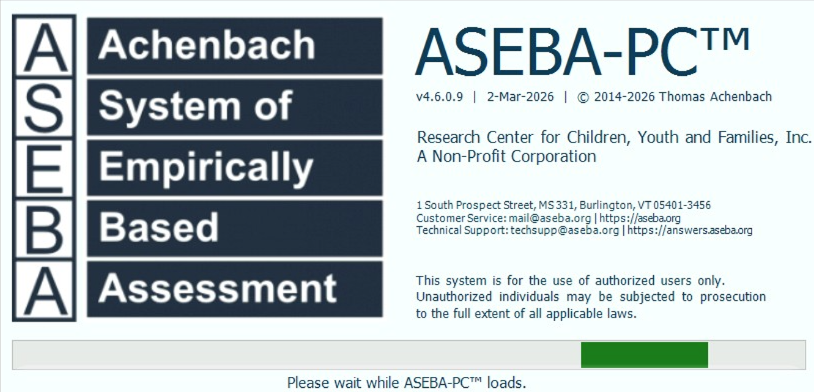
The ASEBA-PC program will begin to load:
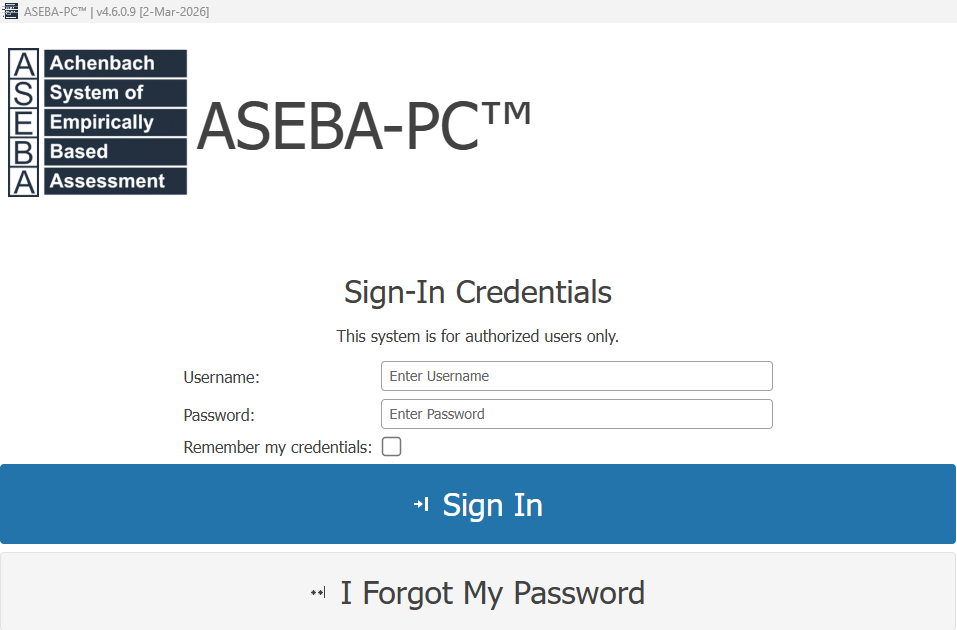
The ASEBA-PC program will open to the login page: Please login with admin as the username and Password77 as the password. You will then be asked to change your password.
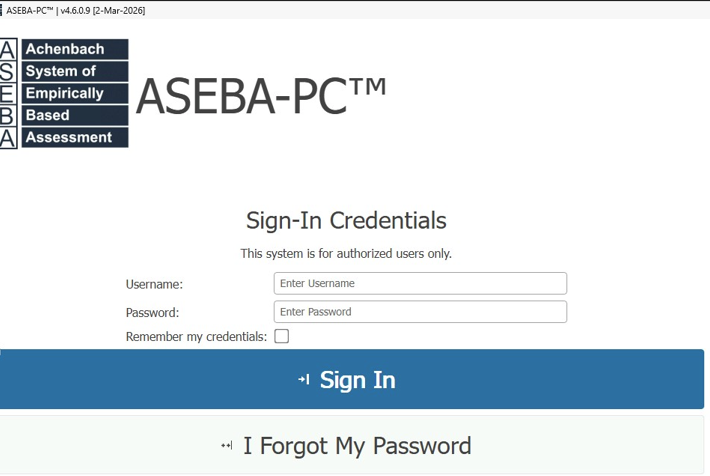
To reset your ASEBA-PC password, please click the “I forgot my password” link under the Sign In tab on the login screen.
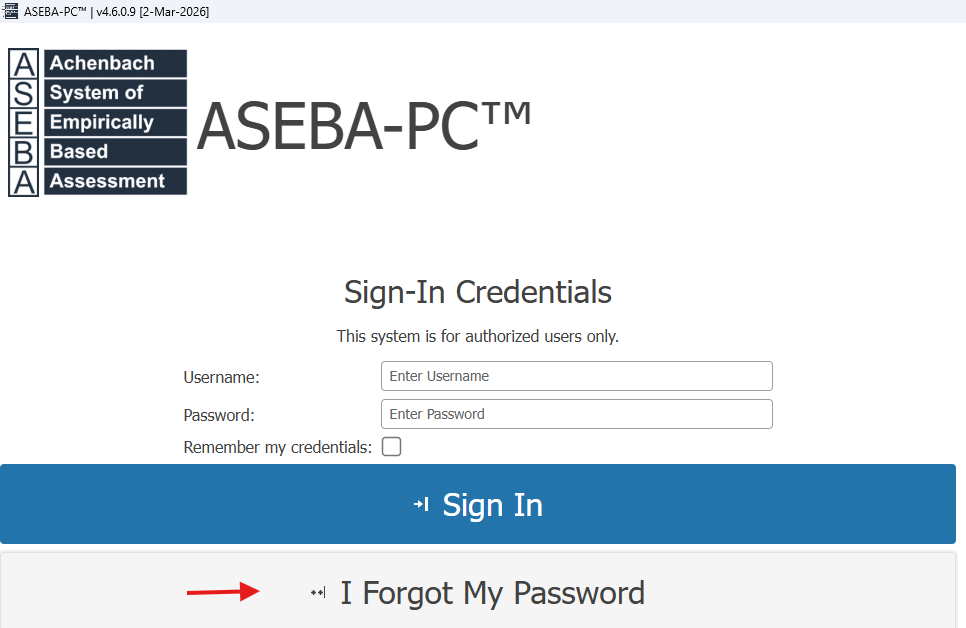
 If the link is missing (very old ASEBA-PC programs do not have the link), please send an email to techsupp@aseba.org and a new ASEBA-PC installer will be emailed. Once the new installer is installed, the “I forgot my password” link will be visible.
ENTER PASSWORD RESET CODE window will open.
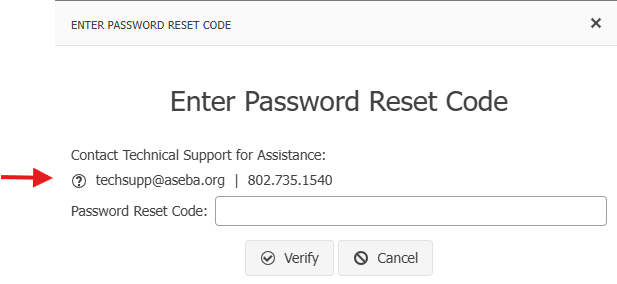
Please email or call ASEBA Technical Support for a Password Reset Code: techsupp@aseba-org or 802-735-1540. Once you receive the Password Reset Code, please enter the code and click Verify.
Please choose a new password. The password must be 10 characters long with one uppercase and one lowercase letter. The last 3 passwords cannot be used. Click Change.
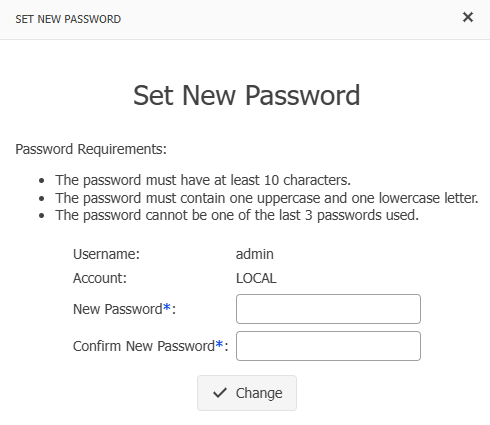
Please log in with your new credentials: