Technical Support for ASEBA® Software Products
How do I change or reset a user’s password?
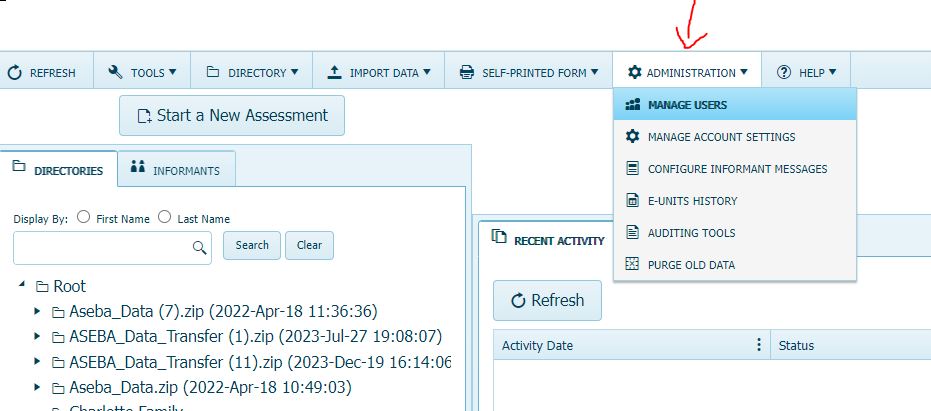
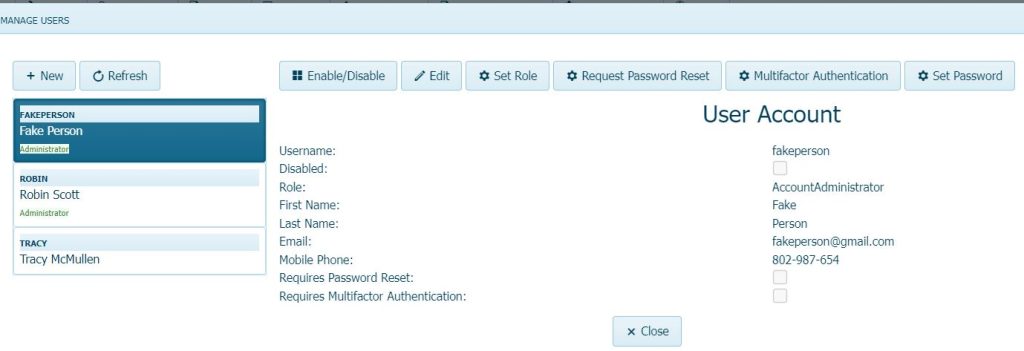
To change a user’s password in ASEBA-Web, ASEBA-PC and ASEBA-Network: Click on the ADMINISTRATION Tab and then click on MANAGE USERS.
In older versions of ASEBA-PC and ASEBA-Network: Please click on My Account, Users Management.
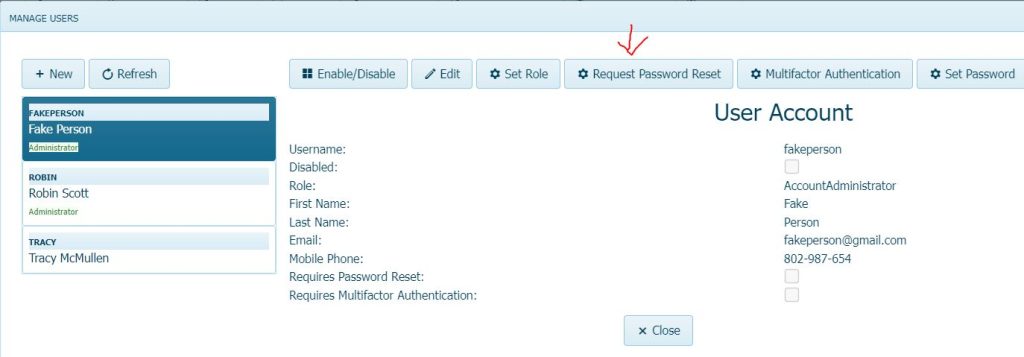
Click the name of the user to reset password for to highlight them. Click Set Password.
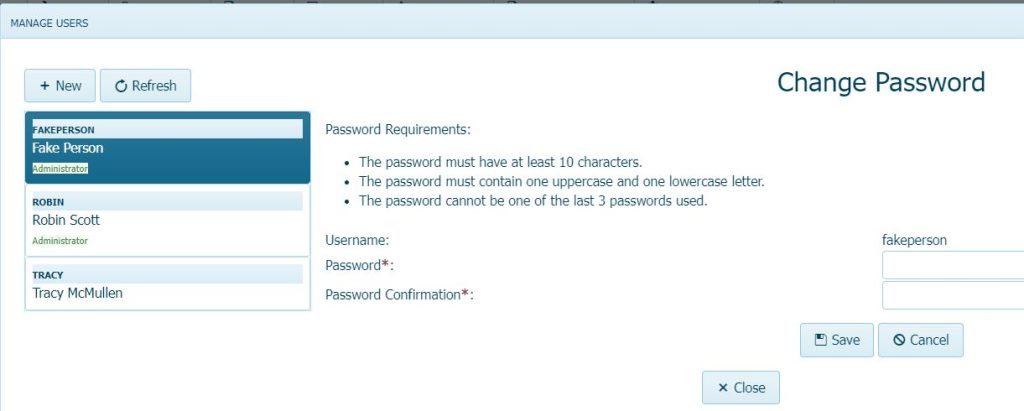
Create a new password (10 characters long with an uppercase and lowercase) and click Save and Close.
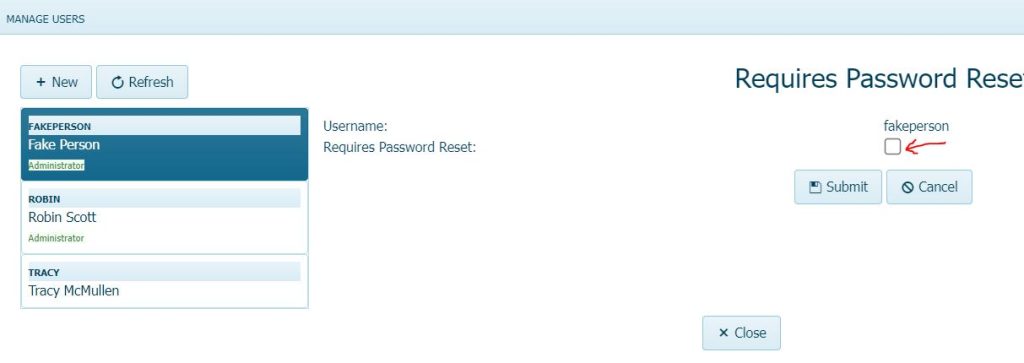
To make sure that the user does not have to reset the password one more time when they log in, click on Request Password Reset tab, and uncheck the Requires Password Reset box and click Submit. The user will then be able to log in with the orginally created password and not have to recreate one of their own.