Technical Support for ASEBA® Software Products

How to Add and Disable Clinicians in the Drop-down list in ASEBA-Web, ASEBA-PC, ASEBA-Network (Administrators Only)
< 1 min read
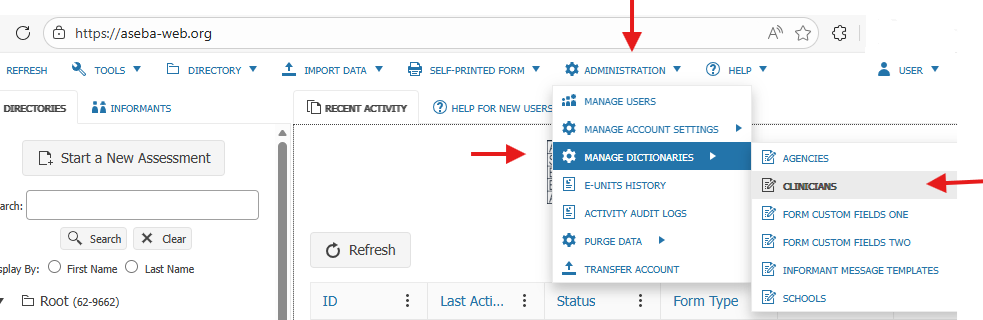
Select ADMINISTRATION tab, MANAGE DICTIONARIES tab, and the CLINICIANS tab
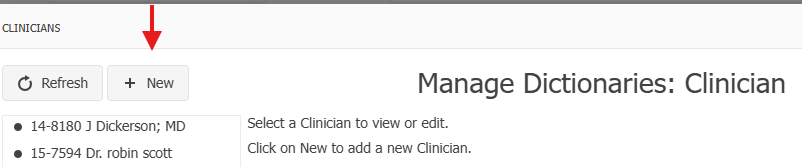
Select New (clinicians will show in the left column once created).
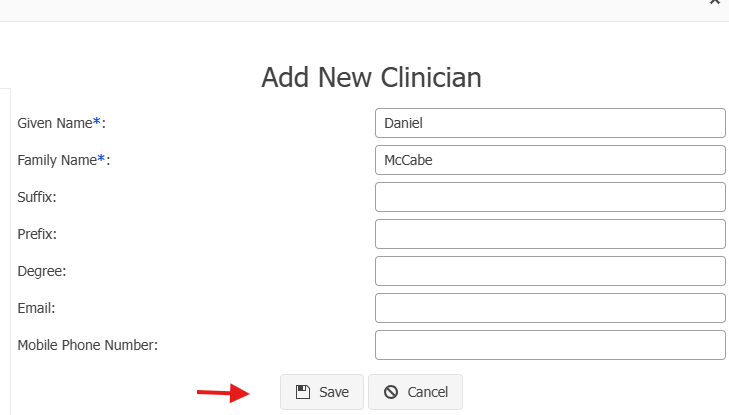
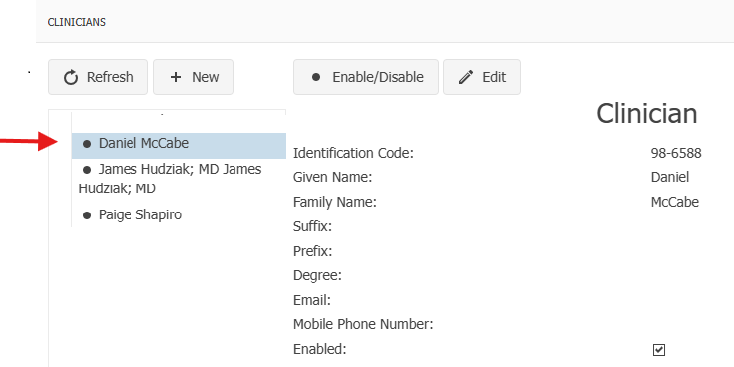
Fill in the information on the clinician. Suffix, Prefix, Degree, Email and Mobile Phone Number are all optional. They are skipped for this example. Click Save.
The clinician’s name will appear in the left hand column.
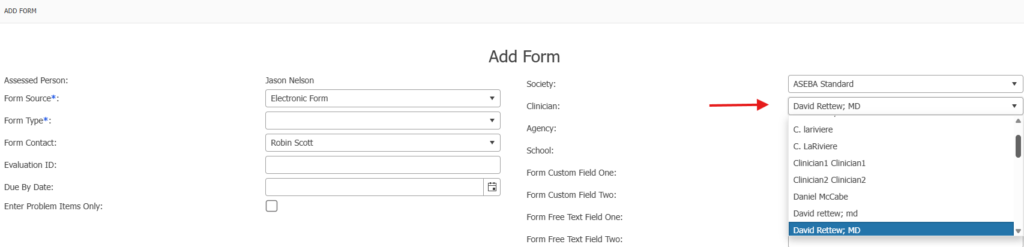
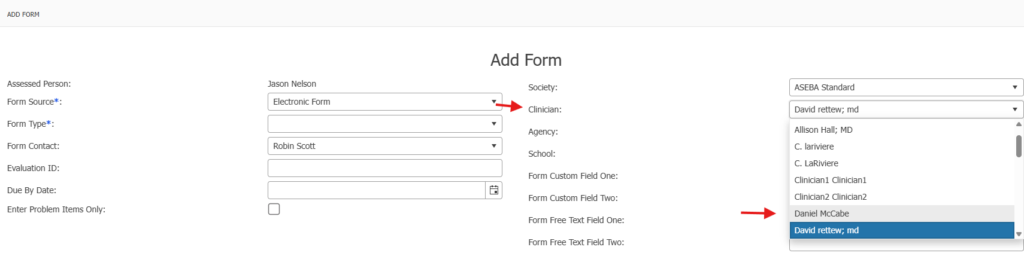
Once the clinician has been added, the clinician’s name will appear in the drop-down list in the ADD FORM window:
To disable a clinician (removal is not permitted per HIPAA) from the drop-down list, select ADMINISTRATION tab, MANAGE DICTIONARIES tab, and the CLINICIANS tab again. Select the clinician to disable, click on the Enable/Disable tab.
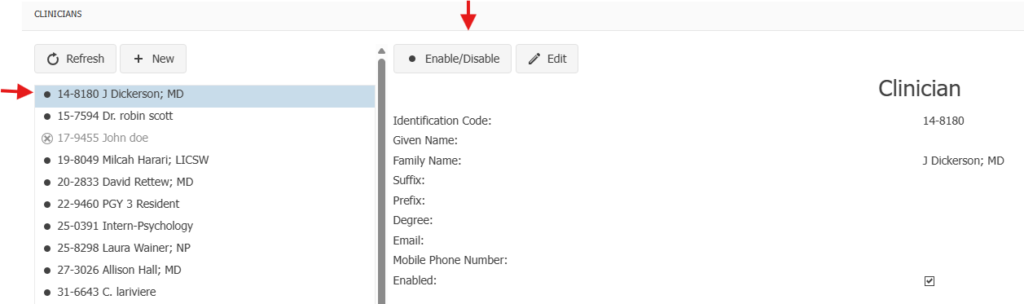
Uncheck the Enabled box and select Change. The clinician’s name will now be faded. The clinician will not show up now in the drop-down list.